
4GameGround - Zombie Coloring
Play Count0
Published2022-08-22
Supported DevicesPC + Mobile
CategoryArcade & Classic
Rating★★★★★5.0Rate this game
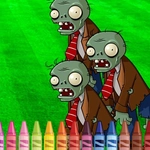
📝4GameGround - Zombie Coloring Overview
Pick up a digital brush, fill those goofy zombie faces with sickly neon green, and see why coloring the undead is weirdly relaxing.
💬What is 4GameGround - Zombie Coloring?
I fired this up expecting a throwaway time-waster, but the chunky black outlines and goofy zombie faces actually made me stick around. You load into a grid of undead scenes — some are full bodies with stitches, others are close-up heads with bulging eyes. A palette of colors sits on the side, and the fill tool snaps into place without leaking outside the lines. Pick a shade, click a section, and watch it flood with color. There's no wrong answer: a hot pink zombie with electric blue teeth? Go for it. The instant feedback feels satisfying, like popping bubble wrap.
What surprised me most is how calming it is. The zombies aren't scary — they're cartoonish, with exaggerated jaws and comically exposed brains. It feels more like a Halloween coloring book than a horror game. Mouse controls are dead simple (no pun intended): click a color, click a region. On a touchscreen, it's even easier — just tap. No timer, no score, no pressure. Just you, a color wheel, and a horde of undead waiting for a makeover. I caught myself shading a zombie's eyeball with three different greens just to make it pop against the purple skin.
If you need a brain break between intense multiplayer matches, this is a solid pick. It runs in any browser, no download or sign-up required. Perfect for killing a few minutes while pretending to pay attention in class. The one downside I noticed? You can't save or print your finished page within the game itself, but a quick screenshot does the trick. Half the fun is just messing around and starting over with a completely different color scheme.
👥How to Play 4GameGround - Zombie Coloring
Use mouse or tap the screen
✨Game Tips
Start with the largest closed areas first so you don't accidentally cover smaller details with the flood fill.
Use the eyedropper tool to reuse a custom shade you mixed earlier instead of hunting for it again.
Zoom in on the face if your browser supports it — coloring tiny teeth and eyes is way easier up close.
Try a limited palette of three or four colors per page for a cohesive zombie style that looks intentional.
Tap the undo arrow once to revert a fill you didn't like instead of reloading the whole page.
Switch to a dark background color first if you plan to use neon or glow-in-the-dark tones for contrast.
🔧FAQ
Q: Is 4GameGround - Zombie Coloring free to play?
A: Yes, it's completely free in your browser. No hidden fees or premium unlocks.
Q: Can I play 4GameGround - Zombie Coloring on my phone?
A: Yes, the game supports touchscreen taps, so it works on mobile and tablet browsers.
Q: Do I need to download or install anything?
A: No download needed. Just open the site, click the game, and start coloring.
Q: Is 4GameGround - Zombie Coloring okay for young kids?
A: Definitely. The zombies are cartoonish, not scary, and there's no violence or gore.
Q: How do I change colors while coloring?
A: Click or tap a swatch from the palette, then click the area you want to fill. Repeat to switch.
Q: Can I save or print my finished zombie artwork?
A: The browser version doesn't have a save feature, but you can screenshot your work to keep it.